Showing posts with label PC Trick. Show all posts
Showing posts with label PC Trick. Show all posts
Sunday, September 20, 2015
How to Set Vanity URL in Vine?

Vine is a short-form video sharing service where users can share six second-long looping video clips. The service was founded in June 2012, and American microblogging website Twitter acquired it in October 2012, just before its official launch. Users' videos are published through Vine's social network and can be shared on other services such as Facebook and Twitter. Vine's app can also be used to browse through videos posted by other users, along with groups of videos by theme, and trending, or popular, videos.
Vine enables users to record short video clips up to around six seconds long while recording through its in-app camera. The camera records only while the screen is being touched, enabling users to edit on the fly or create stop motion effects. Additional features were added to the app in July 2013; these include grid and ghost image tools for the camera, curated channels, the ability to "revine" videos on a personal stream, and protected posts. In July 2014, Vine updated their app with a new "loop count" meaning every time someone watches a vine, a number on top of the video will appear showing how many times it was viewed. The "loop count" also includes views from vines that are embedded onto other websites.
However, i was recently created account on Vine in my phone. I was setting up my account, then i was determined that there is no any choice to Set Vanity URL in Vine. Vanity URL approach showing some special name in URL rather than your profile numerical id, like we claim in Facebook and Twitter, and so forth. I do a variety of search, then i log in to my Vine account from my computer. I visit setting and that i noticed a option to declare Vanity URL. It manner, we are able to set vanity URL in Vine, but from computer only, no longer from any app. So, Let's begin.
How to Set Vanity URL in Vine?
#1: Sign in to your Vine Account from Computer or Laptop.
#2: Go to Settings.
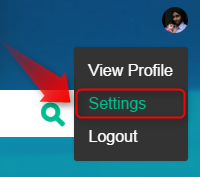
#3: Scroll down. The Last option is to set Custom URL.
#4: Click on Set URL green button.

#5: Enter your Unique Username
#6: Click Confirm.

#7: Done.

#8: Now Follow me on Vine at @HSinghHira :P LOL!!
How to Set Vanity URL in Vine?
#1: Sign in to your Vine Account from Computer or Laptop.
#2: Go to Settings.
#3: Scroll down. The Last option is to set Custom URL.
#4: Click on Set URL green button.

#5: Enter your Unique Username
#6: Click Confirm.

#7: Done.

#8: Now Follow me on Vine at @HSinghHira :P LOL!!
Thank you for patronizing Design Devta. I am sure your visit to us must be quite satisfying and in line with your expectations from us. Just in case, it's not as you expected from us or if you are facing any problem, kindly forward your feedback's directly to us by leave a Comment below or using our Contact form. And, get assured response from my side. Your feedback's and suggestions are extremely valuable to us. This Post is written by Harman Singh Hira. There is no any source so Copying or using this post for your own site is not allowed. If anyone do so get ready for facing DMCA. Please, if you like this post then share on your social networking sites. Assuring you of our best service always.

Saturday, September 19, 2015
How to Control YouTube in PC with Smartphone?
YouTube is a video-sharing website headquartered in San Bruno, California, United States. The service was created by three former PayPal employees in February 2005. In November 2006, it was bought by Google for US$1.65 billion. YouTube now operates as one of Google's subsidiaries. The site allows users to upload, view, and share videos, and it makes use of WebM, H.264/MPEG-4 AVC, and Adobe Flash Video technology to display a wide variety of user-generated and corporate media video. Available content includes video clips, TV clips, music videos, and other content such as video blogging, short original videos, and educational videos.
Most of the content on YouTube has been uploaded by individuals, but media corporations including CBS, the BBC, Vevo, Hulu, and other organizations offer some of their material via YouTube, as part of the YouTube partnership program. Unregistered users can watch videos, and registered users can upload videos to their channels. Videos considered to contain potentially offensive content are available only to registered users affirming themselves to be at least 18 years old.
How to Control YouTube in PC with Smartphone?
#01: Connect PC and Smartphone with same Internet Connection i.e. WiFi
#02: Now Go to www.YouTube.com/tv
#03: Click on Left Sidebar.
#04: Select Settings from it
#04: Select Settings from it

#05: Then Click on Pair Device Box.
#06: It will show you a Pairing Code.

#06: It will show you a Pairing Code.

#07: Now Open YouTube's Official App in your Phone
#08: Go to Settings (by click three dots from top right corner)
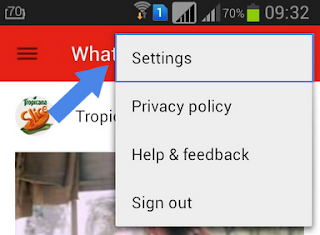
#09: Click on Connected TVs
#10: Then Add a TV
#11: Add Pairing Code to Phone that appears in PC

#12: Done
#13: Now Play any YouTube Video in Phone and it will Play in PC.

#09: Click on Connected TVs
#10: Then Add a TV
#11: Add Pairing Code to Phone that appears in PC

#12: Done
#13: Now Play any YouTube Video in Phone and it will Play in PC.
Thank you for patronizing Design Devta. I am sure your visit to us must be quite satisfying and in line with your expectations from us. Just in case, it's not as you expected from us or if you are facing any problem, kindly forward your feedback's directly to us by leave a Comment below or using our Contact form. And, get assured response from my side. Your feedback's and suggestions are extremely valuable to us. This Post is written by Harman Singh Hira. There is no any source so Copying or using this post for your own site is not allowed. If anyone do so get ready for facing DMCA. Please, if you like this post then share on your social networking sites. Assuring you of our best service always.
How to Receive Android Notifications on PC/Mac?

Do you missed so many notification because you were working on Computer and you phone was on charge or away from you? We all face this problem. We can't always put our phone in our pocket while at home. Sometimes, we missed very important notification where we need to reply instantly but we couldn't reply only because we didn't know about it.
But there is no worry about this problem because we have a solution for it. No we don't need to download any software in our PC. All we need is to install an Extension in our browser. This application gets all your android notifications right on your PC Screen instantaneously so that you will not miss any of them. This app works with all android application and also have lollipop support. So Let's get started:
Step 1: Setting up Extension
#1: Install an Extension in your Browser [Google Chrome | Mozilla Firefox]
#2: After Installing, Click on Icon (with Address bar).
#3: Sign in with your Google Account.

#4: Click Allow to access your account.

#5: Setting it up according to you.

#6: Done
Step 2: Setting up Phone App.
#1: Install an App in your Android Phone.

#2: Open the App.
#3: Click on Open Settings Button.

#4: Turn On Desktop Notification Service

#5: Open app again and scroll down.
#6: Sign in with Google with same account your sign in your PC.

#7: For Google Chrome Users, its Done but Firefox users copy code.

#8: Fill this code in your Firefox addon.
#9: Done.

Thank you for patronizing Design Devta. I am sure your visit to us must be quite satisfying and in line with your expectations from us. Just in case, it's not as you expected from us or if you are facing any problem, kindly forward your feedback's directly to us by leave a Comment below or using our Contact form. And, get assured response from my side. Your feedback's and suggestions are extremely valuable to us. This Post is written by Harman Singh Hira. There is no any source so Copying or using this post for your own site is not allowed. If anyone do so get ready for facing DMCA. Please, if you like this post then share on your social networking sites. Assuring you of our best service always.
Transfer Files between Phone and PC over WiFi

The future is wireless and the trend is now being carried over by android phones too. These days a very few people actually prefer to use USB cables for transferring files between their PC’s and their phones/tablets. The reason being transferring files wirelessly is very convenient than transferring files through a USB cable and adding to the advantages, you don’t have to wait beside your PC until the transfers complete. While your files are being transferred to your phone you can carry on with your other works.
There are many apps on the android store that can help you to transfer files wirelessly between your PC and Android phones. Among these apps, some come with bare and basic features like simply transferring files over WiFi and some add many more exciting features apart from the basic file transferring feature. For me, when it comes to features, i believe in the more the merrier. So in this guide I will make use of an feature packed app to transfer files between a PC and an android phone.
Xender is a file transfer and file sharing tool for mobile devices. It allows you to transfer files of various types and sizes to devices within your vicinity. They have an Android version and an iOS version of Xender, for Android and iOS devices respectively. Xender can transfer between Android devices, between iOS devices, and also between Android and iOS devices. Xender is a free application so no payment is needed of any format. You can download it free of charge from either Google Play Store or Apple App Store. You can transfer almost every file type on your phone with Xender. Images, Music, Documents, Videos and you can even transfer apps and games that are installed on your devices. With iOS devices, the file types that can be transferred include contacts, images and videos, due to restrictions from iOS system. Xender requires absolutely no internet connection to function. It makes use of your phone’s Wi-Fi hotspot feature and this is independent of any external internet connection. Xender makes use of your phone’s Wi-Fi hotspot feature for file transfer and will definitely not use your mobile data. By default, Xender will temporarily disable your mobile internet connection during a file transfer session and will restore it when you disconnect from the group. In previous versions of Xender, they had this functionality. However, they have decided to upgrade this feature into a separate application called Xender PC (WeLine). This new application will make this process much easier for you and also offers a lot more new and awesome features as well. Xender PC (WeLine) is also available in Google Play Store and Apple App Store.
Features:
- Faster than Bluetooth (up to 50 times faster than Bluetooth)
- Easier than AirDrop
- No need for NFC
- Transfer of files between iOS and Android devices
- Transfer of files between Phone and Computer
- Sharing files of multiple types without any data usage
- Group sharing is supported for up to 5 devices at a time
Download and Install app:
Thank you for patronizing Design Devta. I am sure your visit to us must be quite satisfying and in line with your expectations from us. Just in case, it's not as you expected from us or if you are facing any problem, kindly forward your feedback's directly to us by leave a Comment below or using our Contact form. And, get assured response from my side. Your feedback's and suggestions are extremely valuable to us. This Post is written by Harman Singh Hira. There is no any source so Copying or using this post for your own site is not allowed. If anyone do so get ready for facing DMCA. Please, if you like this post then share on your social networking sites. Assuring you of our best service always.
Subscribe to:
Posts (Atom)